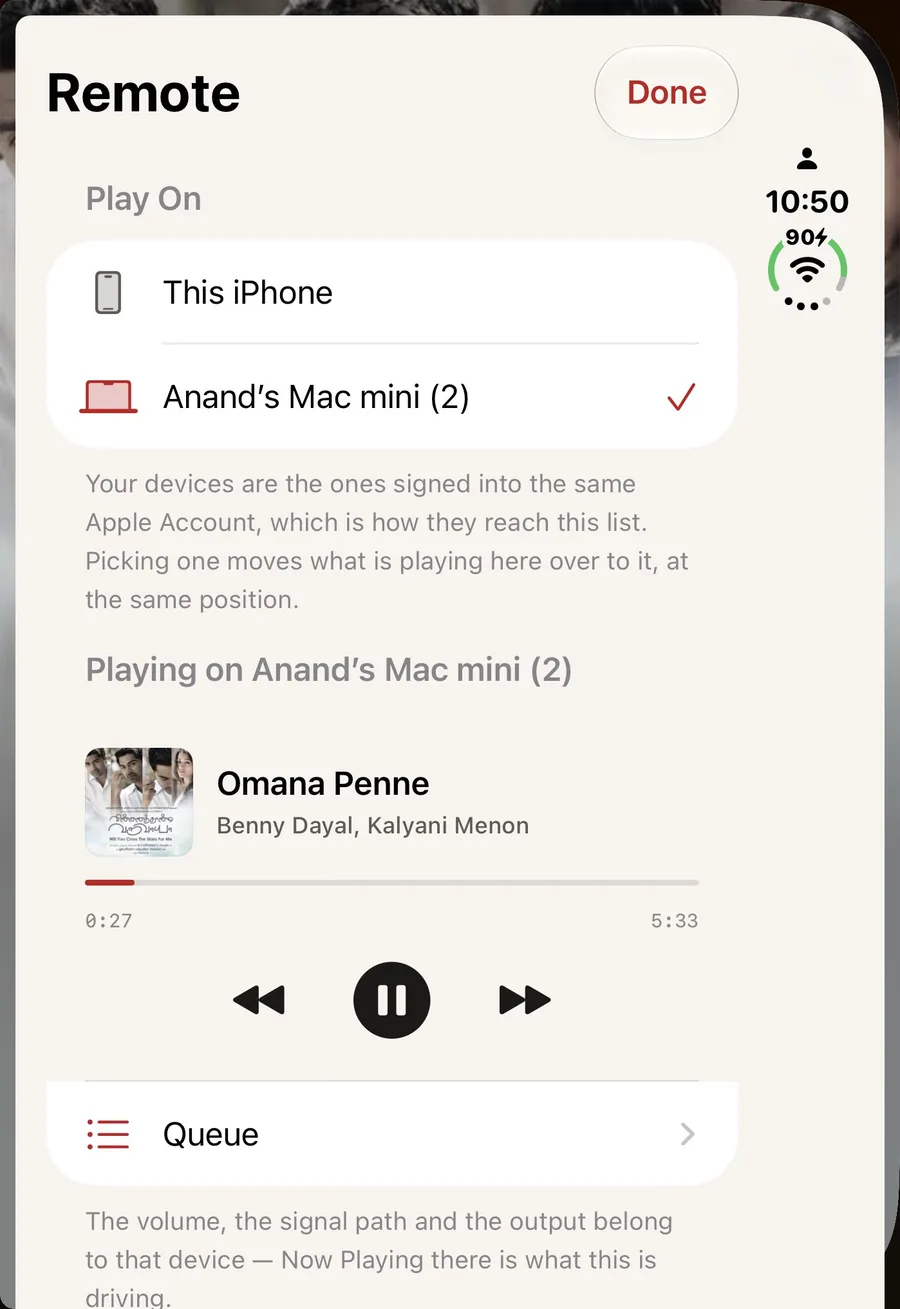

Play On is Isai’s remote. With Isai on your iPhone and on your Mac, both on the same Wi-Fi, you open Remote on the phone, pick the Mac, and what was playing moves to the Mac at the same position. The Mac plays the file through its own output and DAC. The phone shows the queue, the transport and the Mac’s Signal Path, so you can run a bit-perfect setup from across the room. It works on your local network only, with no account and no server, and it is part of Isai Pro.
The good speakers are over there. The good chair is over here.
01The Mac is across the room
If you care about how your music sounds, there is a good chance it ends at a DAC: the digital-to-analogue converter that turns the numbers in a FLAC file into the signal your amplifier or headphones play. A lot of listeners wire that DAC to a Mac by USB, because on the Mac, Isai can take the DAC for itself, match its sample rate and bit depth to the file, and read the settings back. That is what bit-perfect means: the samples in the file reach the DAC unchanged.
The trouble is that the Mac sits on a desk, and the sofa does not. Getting up to skip a track, or walking over to see what is next, gets old quickly.
02What Play On is
Play On lets two copies of Isai on the same Wi-Fi control each other. Sit on the sofa with your phone and play through the Mac that is wired to the good DAC. The queue, the position and the Signal Path follow whichever device is making the sound.
It is a remote, not a stream. Your iPhone does not send any audio. It tells Isai on the Mac what to play and when, and Isai on the Mac reads the file and plays it through the Mac’s own output. The phone then shows you what the Mac is doing, which is how a phone comes to be showing a BIT PERFECT verdict it is not producing itself.
03How to use Play On
It takes about a minute the first time, and a couple of taps after that.
- Open Isai on both devicesOpen Isai on the Mac and on your iPhone, with both on the same Wi-Fi. Devices signed into the same Apple Account find each other on their own.
- Open Remote on the iPhoneThe Remote sheet has a Play On list: This iPhone, and the other devices running Isai, such as Anand’s Mac mini (2).
- Pick the MacTap it and the red check moves to it. Whatever was playing on the phone moves over to the Mac at the same position, with the same queue. The song carries on from the second it was at.
- Steer from the sofaUnder Playing on, the sheet shows the track, the artist, a progress bar and back, pause and forward. Browse your library to pick what plays next, open Queue to see what is coming, and use volume and the A/B loop as usual. They all act on the Mac.
- Check where it is playingNow Playing on the phone carries a pill that reads Playing on Anand’s Mac mini (2), so you always know which machine you are driving.
- Bring it backHeading out? Open Remote and pick This iPhone.
04What follows the device
The Remote sheet puts it plainly: the volume, the Signal Path and the output belong to the device that is playing, and Now Playing on the phone is what drives it. In practice:
| Sound | Comes out of the Mac, through the Mac’s output and DAC |
|---|---|
| Queue | The Mac’s queue, shown and shuffled from the phone |
| Position | Carried over to the second when you switch |
| Transport | Play, pause, back and forward on the phone act on the Mac |
| Volume | The Mac’s volume |
| A/B loop | Set from the phone, played on the Mac |
| Signal Path | The Mac’s path: format, processing, output and verdict |
| Browsing | Pick albums and songs on the phone to play on the Mac |
The chips on Now Playing are the Mac’s. In the screenshot at the top of this page, a CD-quality FLAC is going to the DAC untouched:
- FLAC 16/44.1
- Bit perfect
- Playing on Anand’s Mac mini (2)
05The queue, from the sofa
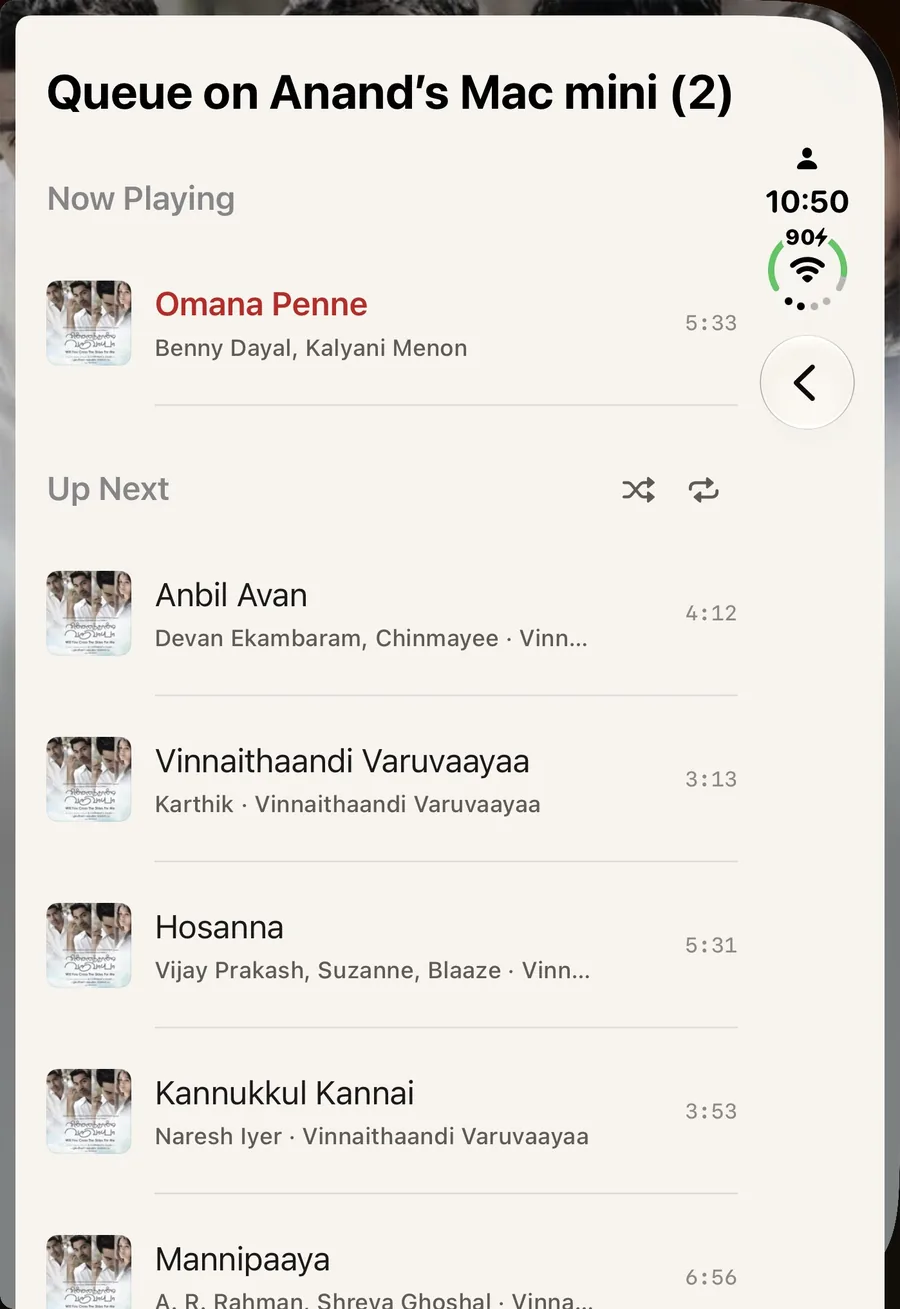
Tap Queue in the Remote sheet and you get Queue on Anand’s Mac mini (2): what is playing now, and everything up next, with shuffle and repeat at the top of the list. Here it is the soundtrack of Vinnaithaandi Varuvaayaa by A. R. Rahman, with Omana Penne playing and Anbil Avan, Vinnaithaandi Varuvaayaa, Hosanna, Kannukkul Kannai and Mannipaaya to come.
The title tells you whose queue it is. That small detail matters when there are two copies of Isai in the house: you are never left wondering whether you just shuffled the phone or the Mac.
06Private by design
Play On works on your local network only. Nothing leaves your network, and there is no account to create and no server in between.
Your own devices recognise each other through your Apple Account. That is how they reach the Play On list: the iPhone, iPad and Mac signed into the same Apple Account show up by themselves. Anything else, such as a family member’s iPad, has to be let in by hand, with a code shown on both screens. A guest on your Wi-Fi cannot quietly take over the Mac.
07Play On, AirPlay and Bluetooth
All three let you play music from your phone in some sense. They do very different things with the audio.
| Play On | AirPlay | Bluetooth | |
|---|---|---|---|
| What travels | Commands only | Audio, from the phone | Audio, from the phone |
| Who plays the file | The Mac | The phone, sent to a receiver | The phone, sent to a speaker |
| Output | The Mac’s own DAC | The receiver’s | The speaker’s |
| On the way | Nothing re-sent; the Mac reads the file | Re-sent over Wi-Fi by the phone | Usually squeezed into a lossy codec |
AirPlay and Bluetooth are good at what they do: sending your phone’s audio to something else. Play On is for a different case, when the best-sounding player in the house is already the Mac on the desk and you only want to steer it. Because the Mac plays the file itself, nothing is re-streamed or recompressed on the way.
08What you need
| Devices | Isai on two of iPhone, iPad and Mac. The classic setup is an iPhone driving a Mac. |
|---|---|
| Network | The same Wi-Fi or local network |
| Recognition | Same Apple Account, or a code shown on both screens |
| Unlock | Isai Pro |
| Not on | Android (Isai on Android has no Play On) |
09Price
Isai is free for music on your device and your Apple Music library. Play On is part of Isai Pro, together with MEGA, Dropbox and WebDAV, Pure Music on iPhone Duo and the widgets.
- $0.99 a month
- $4.99 a year
- $9.99 once, Lifetime
Monthly and Yearly each start with a 7-day free trial for new subscribers. Lifetime is a one-time purchase. Pro purchases made before Isai 1.1 are Lifetime. Pro unlocks on every device signed in to your Apple Account, so one purchase covers both the phone and the Mac. US prices; the App Store shows yours. Details are on the Isai page.
10Questions
What is Play On in Isai?
Play On lets one copy of Isai control another on the same Wi-Fi. Pick your Mac from your iPhone and the queue, the position and the playing state move to the Mac. The Mac plays the music through its own output, and the iPhone becomes the remote.
Can I control music on my Mac from my iPhone?
Yes, with Isai on both. Open Remote on the iPhone and pick the Mac. From the sofa you can play, pause and skip, see the queue and turn on shuffle or repeat, browse your library, change the volume and use the A/B loop, while the Mac does the playing.
How do I use Play On?
Open Isai on both devices on the same Wi-Fi. On the iPhone, open Remote, and under Play On tap the Mac. What was playing moves to the Mac at the same position. To bring it back, open Remote and pick This iPhone.
Is Play On the same as AirPlay?
No. With AirPlay the phone sends the audio over Wi-Fi to a receiver. With Play On the phone sends only commands: the Mac reads the file and plays it through its own output and DAC, so the audio never passes through the phone.
Does Play On keep playback bit-perfect?
Play On does not touch the audio, because the Mac is the one playing it. If the Mac’s path to the DAC is bit-perfect, the iPhone shows the BIT PERFECT verdict the Mac reports, along with the format, such as FLAC 16/44.1.
Does Play On need an account or a server?
No. Play On works on your local network only. There is no account to create and no ARRcade server in between, and nothing leaves your network.
How do my devices find each other?
Devices signed into the same Apple Account recognise each other and appear in the Play On list by themselves. Any other device has to be let in by hand, with a code shown on both screens.
Whose volume does the iPhone control?
The volume of the device making the sound. With Play On, the volume, the Signal Path and the output belong to the Mac, and Now Playing on the iPhone is driving the Mac.
Which devices support Play On?
Isai on iPhone, iPad and Mac. Any of them can drive another, though the usual setup is an iPhone driving a Mac wired to a DAC. Isai on Android does not have Play On.
How much does Play On cost?
Play On is part of Isai Pro: $0.99 a month or $4.99 a year, each with a 7-day free trial for new subscribers, or $9.99 once for Lifetime. Pro purchases made before Isai 1.1 are Lifetime. Isai itself is free for local files and your Apple Music library.