Why Summon
Banners get ignored. Summon doesn’t.
When you’re deep in a document, a notification slides in and slides out, and you find out ten minutes later. Summon takes the whole screen, so you can’t miss it.
A notification banner Missed
Five seconds in a corner, then gone, while your eyes are somewhere else.
Summon On time
The screen you’re on turns into the meeting, with a button that takes you straight in.
On Mac
One button. You’re in.
A centred card, a full-screen takeover or a quiet menu-bar glance. Calm or firm, your call. Try the buttons.
Design Review
5:30 – 6:00 PM
Starts in 50sWeekly Team Sync
5:30 – 6:00 PM
Starts in 50sTODAY
A live demo of the Summon Mac app. Nothing here opens a real meeting.
Smart placement
It lands on the screen you’re working on.
One display or three, Summon follows your cursor and rings on the active one, not on the monitor you forgot about. Pick a screen to work on, then ring.
Working on Display 1.
Join link detection
No more hunting for the link.
Summon reads the event on your device and finds the meeting link, wherever it’s hiding in the notes. Pick a platform to see it work.
1:1 with Aditya
10:00 AMOn iPhone & iPad
A real alarm, not another notification.
Summon sets an alarm for every meeting. It breaks through Silent mode and Focus, fills the screen, and puts Join right under your thumb.
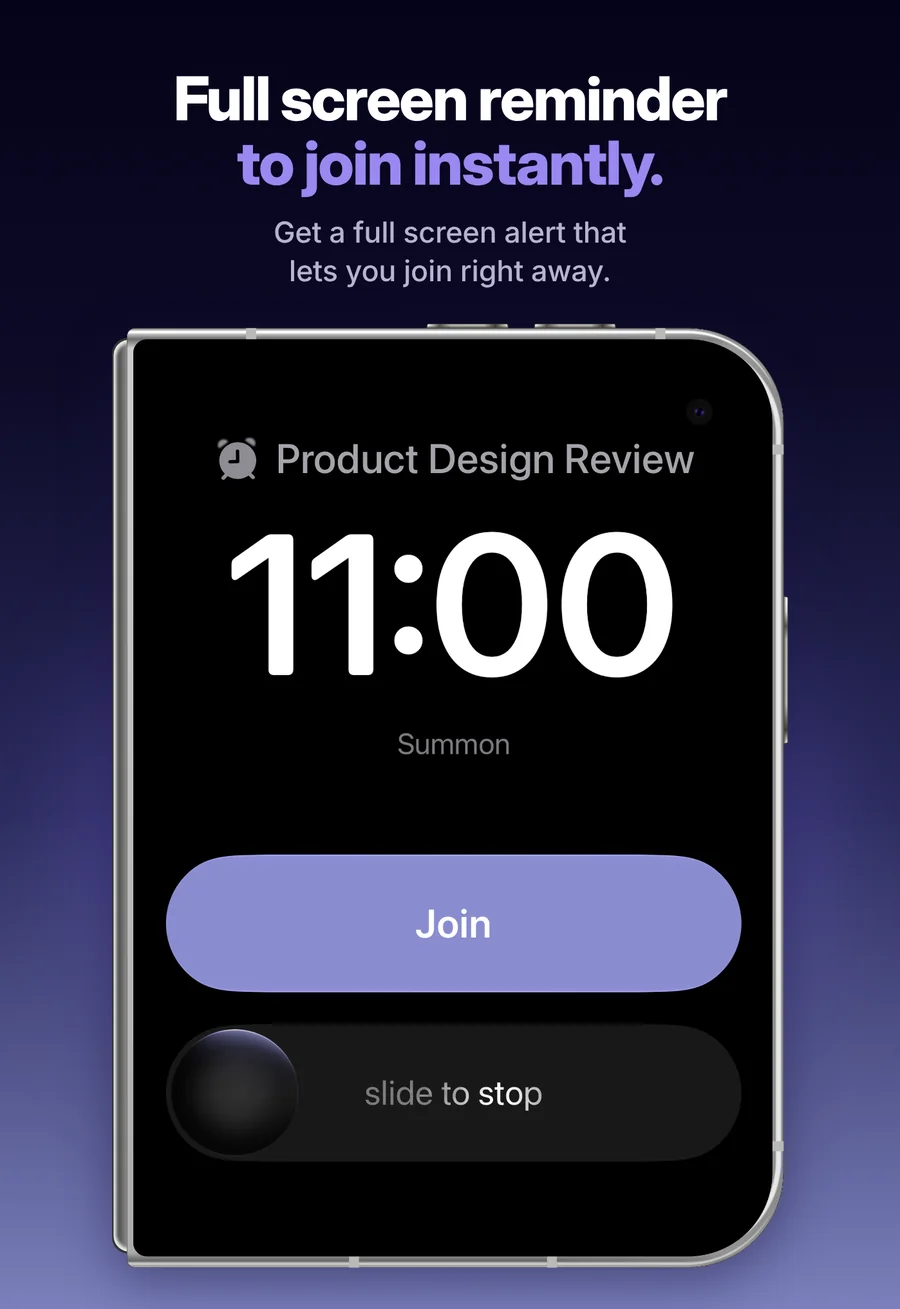
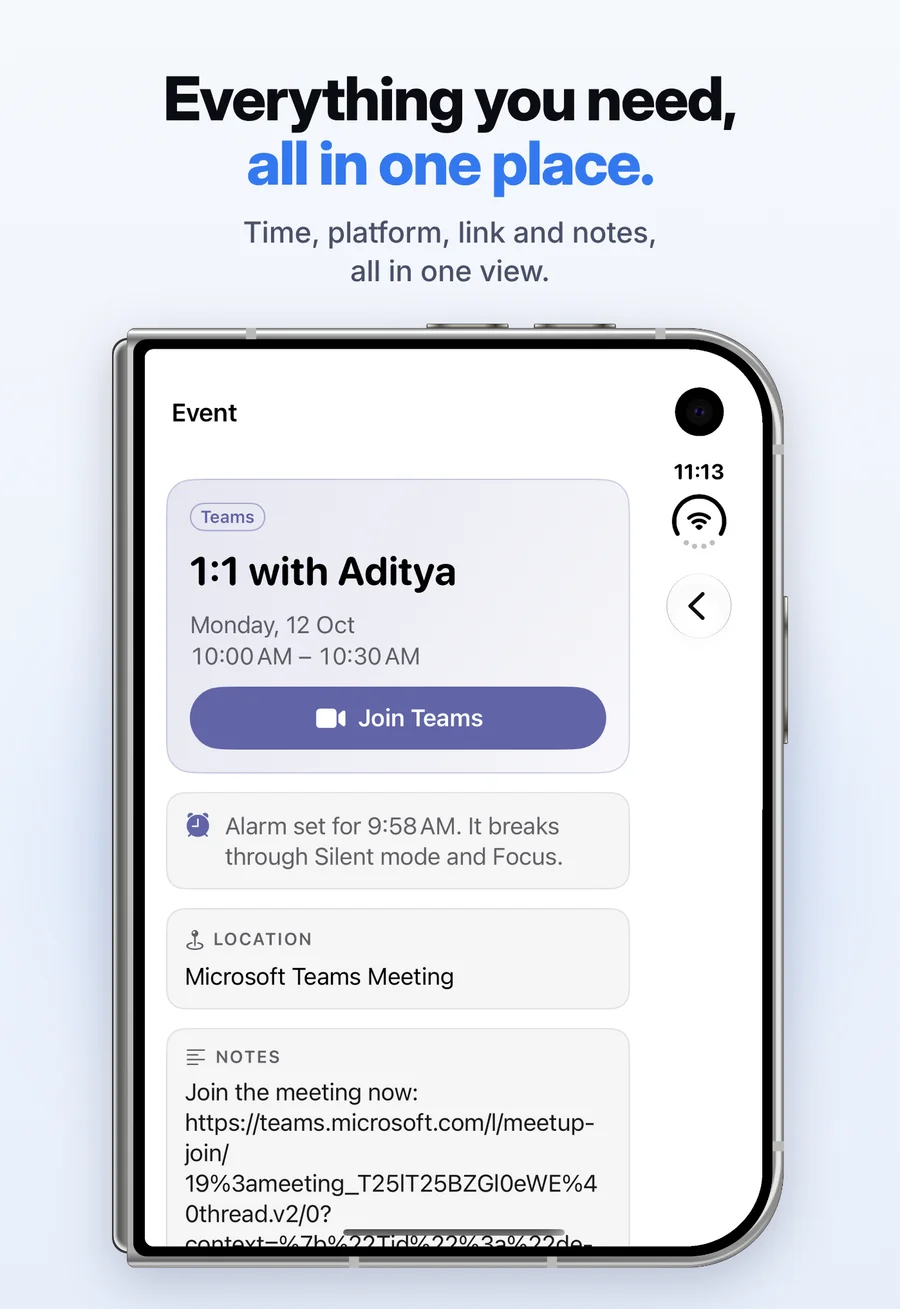
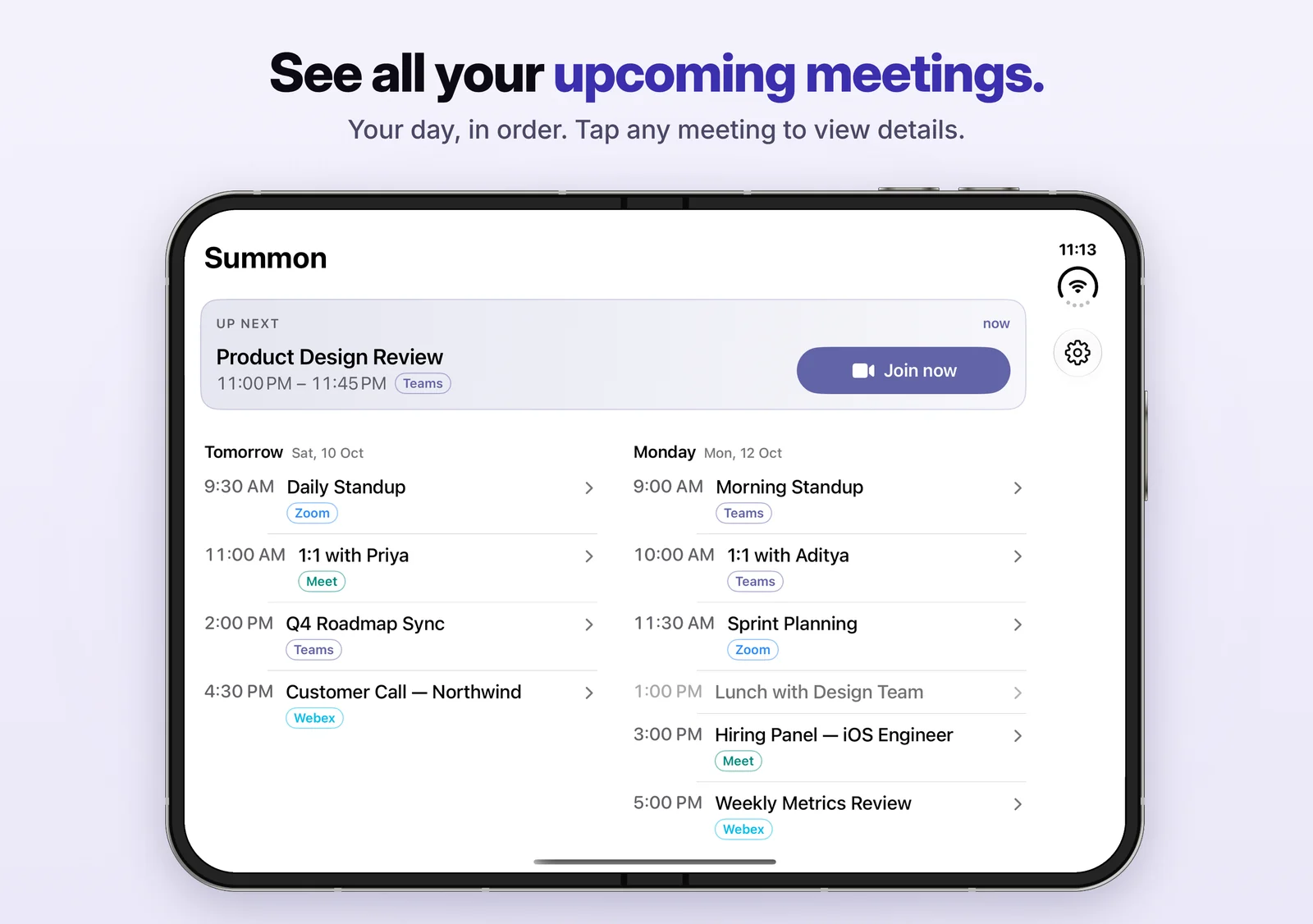
Breaks through Silent & Focus
The alarm rings even when your phone is on silent or a Focus is on, so a quiet phone never costs you a meeting.
Join from the alarm
Tap Join on the full-screen alarm and you’re in the meeting. Slide to stop if you’re skipping it.
Tap any meeting
Every event shows its time, platform, location, notes and a Join button, all on one screen.
Everything it does
Small app. Zero missed meetings.
Full-screen alarm
An alarm that fills the screen with the meeting name, the time and a big Join button. Impossible to miss.
Join link, found for you
Zoom, Google Meet, Microsoft Teams and Webex links are pulled out of your calendar event, along with meeting ID and passcode.
Smart multi-monitor
On Mac the alert appears on the display you’re actively using, every time.
Snooze that comes back
Need a minute? Snooze, and Summon rings again on time instead of quietly letting you forget.
Your day at a glance
Upcoming meetings in order, with platform tags and Join buttons, in the Mac menu bar and on iPhone and iPad.
Private by design
Your calendar is read on-device. No account, no analytics, no tracking.
Your calendar stays on your device.
Summon reads your events on-device through Apple’s EventKit. Nothing is uploaded, there are no analytics or third-party SDKs, and you never create an account. The only network traffic is Apple’s own StoreKit for purchase and restore.
Read the privacy policy →Questions
Good to know
Which calendars does Summon work with?
Any calendar on your device. Summon reads events through Apple’s Calendar framework, so iCloud, Google, Exchange and Outlook accounts you’ve added to your iPhone, iPad or Mac all work.
Which meeting apps can it join?
Summon finds join links for Zoom, Google Meet, Microsoft Teams and Webex in the event’s URL, location or notes, and shows the meeting ID and passcode when there is one.
Will it ring if my iPhone is on silent?
Yes. On iPhone and iPad, Summon sets an alarm for the meeting that breaks through Silent mode and Focus.
I use more than one monitor. Where does the alert show up?
On the display you’re actively working on. Summon follows your cursor, so the alert never lands on a screen you aren’t looking at.
Is it a subscription?
No. Summon Pro is a one-time purchase that unlocks everything on iPhone, iPad and Mac. No subscription, no ads.
How do I get help?
Email anandrajramamoorthy@gmail.com with questions, bug reports or feature requests. We read everything and reply within 2 business days.