// ARRCADE · OUT NOW — VERSION 1.0
Dayshift
Know what time it is for everyone.
Dayshift keeps a live roster of every teammate’s local clock, maps the hours your whole crew is actually on duty, and scores every candidate meeting slot against everyone’s own clock — so you can see exactly who a time is rough for before you book it. A world clock and meeting planner built for a distributed team, on iPhone, iPad, Mac and Apple Vision Pro.
- iPhone
- iPad
- Mac
- Vision Pro
Your local time is shown throughout this page
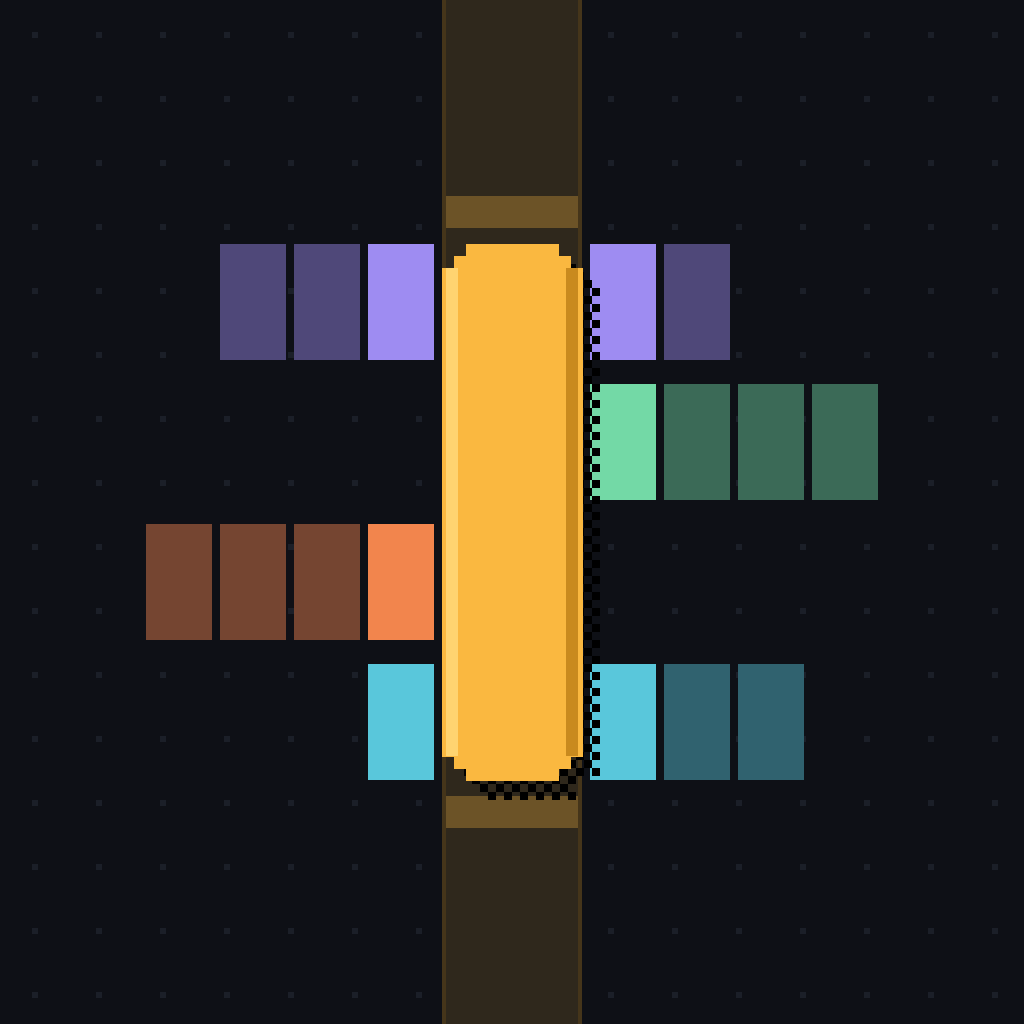
// Shared hours — your time
GOLDEN WINDOW 09:00–13:00 YOUR TIME
Each row is one teammate’s 09:00–17:00 laid over your 24 hours. The top row lights amber only where every single person is on duty — that is the golden window. Add or drop a teammate and watch it open or close. This map is drawn for GMT+00:00; with JavaScript on it redraws in your own time zone.
// The roster
Every teammate’s clock, on one screen
One card per person: their name, their role, the time it is for them right now, and how far off your clock they are — LOCAL, +3:30, −12:30. A coloured square tells you, at a glance, whether a message is welcome.
Anyone without a photo gets a pixel sprite instead: a deterministic 5×5 mirrored invader grown from their own seed, so the same teammate always looks the same on every device.
- ON DUTY09:00–17:00 their time
- FRINGE07:00–09:00 and 17:00–21:00 — edge of the day
- ASLEEP21:00–07:00 — do not ping
- VACATIONa dated interval you set on their card
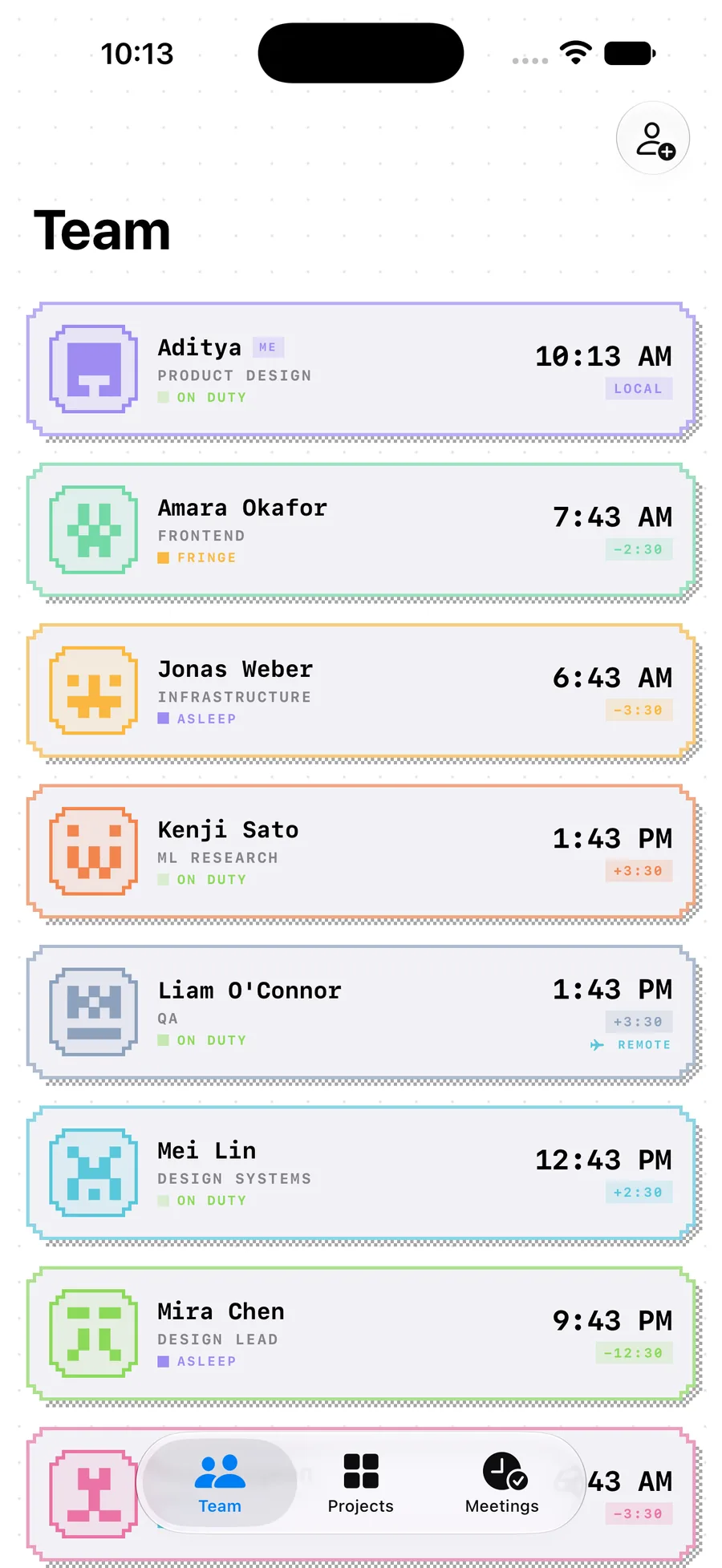
Team — iPhone
// Remote stints & time away
A teammate’s zone is where they are, not where they live
Give someone a remote stint — a second time zone with a start and an end date — and for as long as it runs, that is the clock Dayshift uses for them. Their card picks up a REMOTE badge, their row in the shared-hours map shifts, and the planner scores them where they actually are.
Vacation works the same way: a dated interval on their card. While it’s running they read VACATION on the roster, and the planner penalises any slot that would pull them in and names them in the warning.
Both intervals are day-granular and the end date is inclusive — a stint that ends on the 2nd covers the whole of the 2nd.
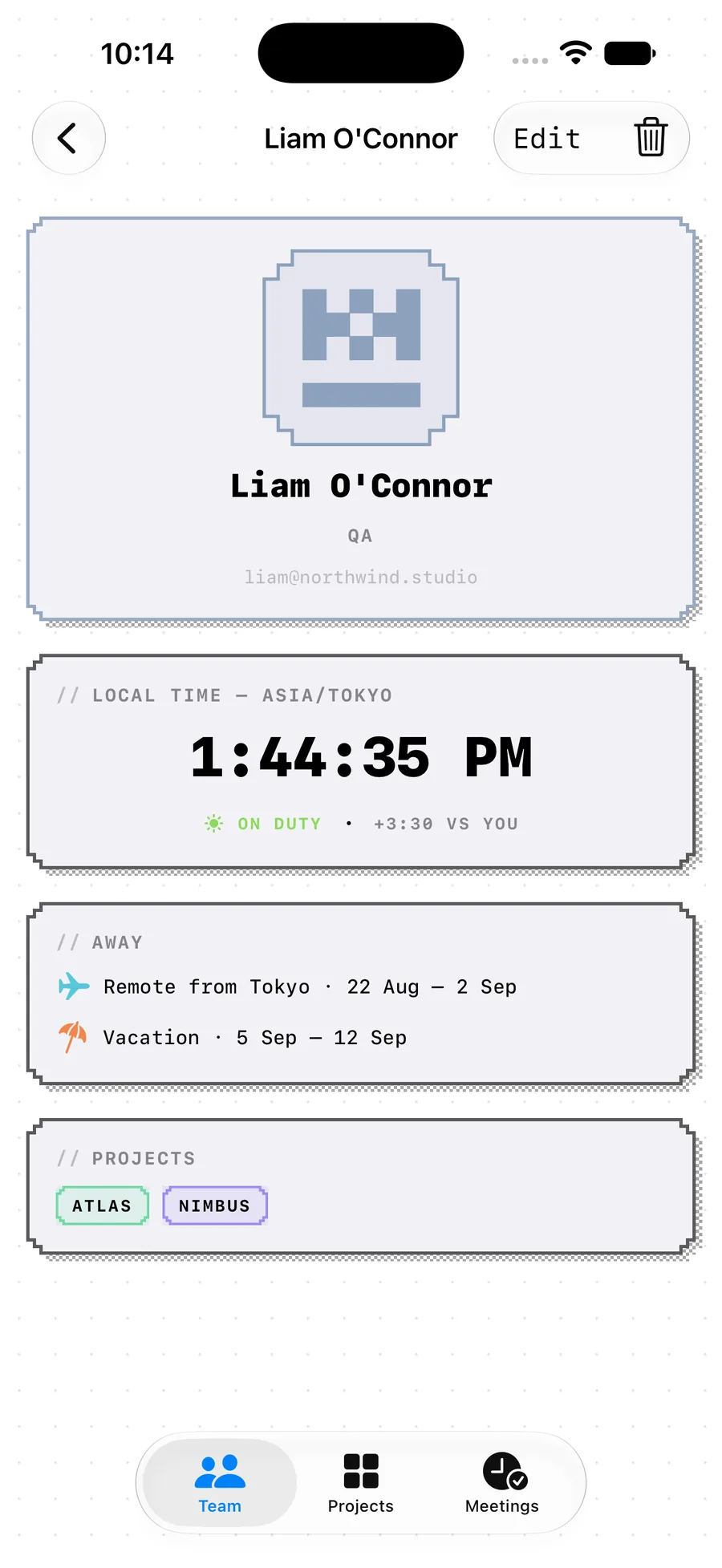
Teammate — iPhone
// Projects & the golden window
The one hour you’re all awake
Group people into a project and Dayshift draws its 24-hour map in your time: one row per crew member, filled where their own 09:00–17:00 lands on your day. The header row lights amber only on the hours where every person is on duty.
When there is a common window, the project says so — GOLDEN WINDOW 12:00–14:00 YOUR TIME. When there isn’t, it says that too: NO FULL-CREW OVERLAP — AI PLANNER RECOMMENDED. Each project also carries its headcount and how many distinct zones it spans, so 6 CREW · 5 TZ tells you what you’re up against before you open it.
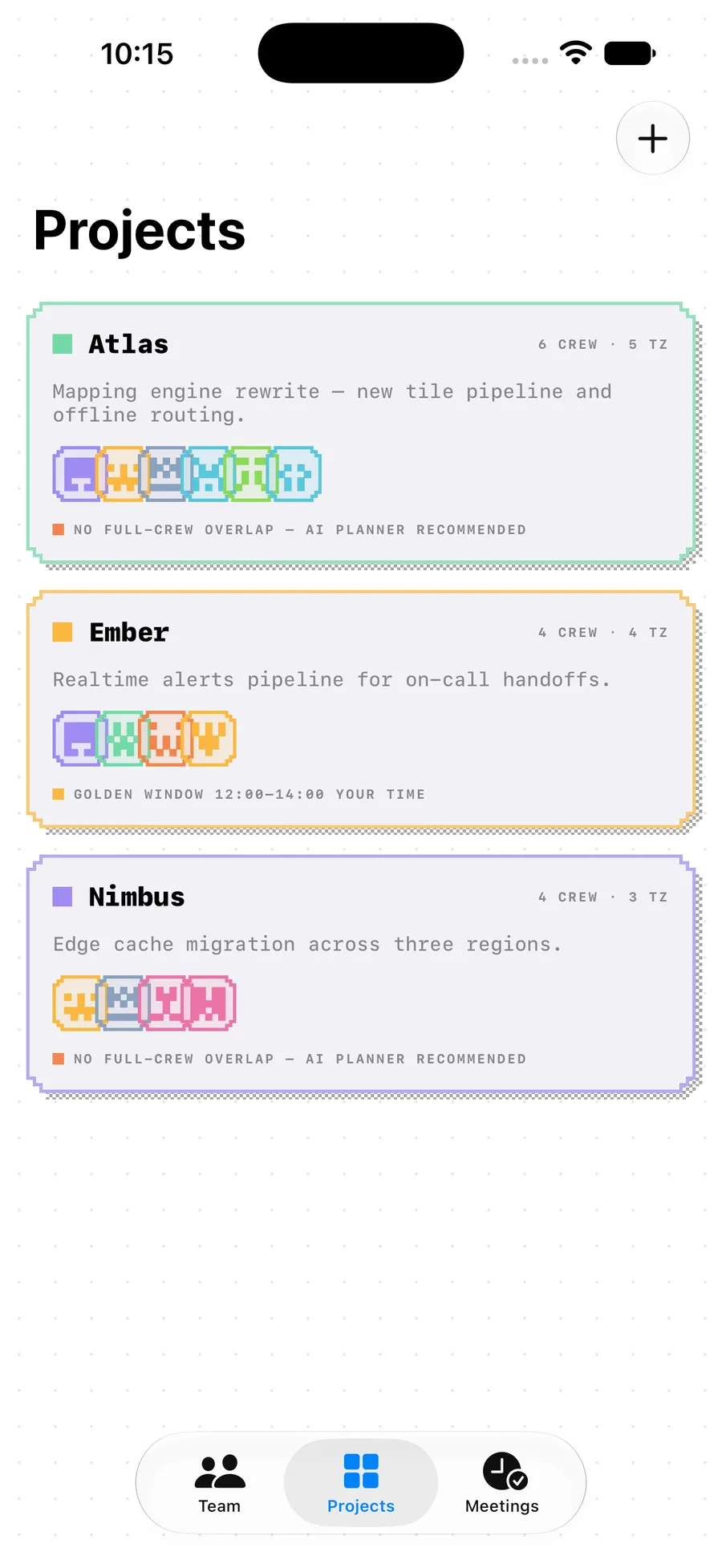
Projects — iPhone
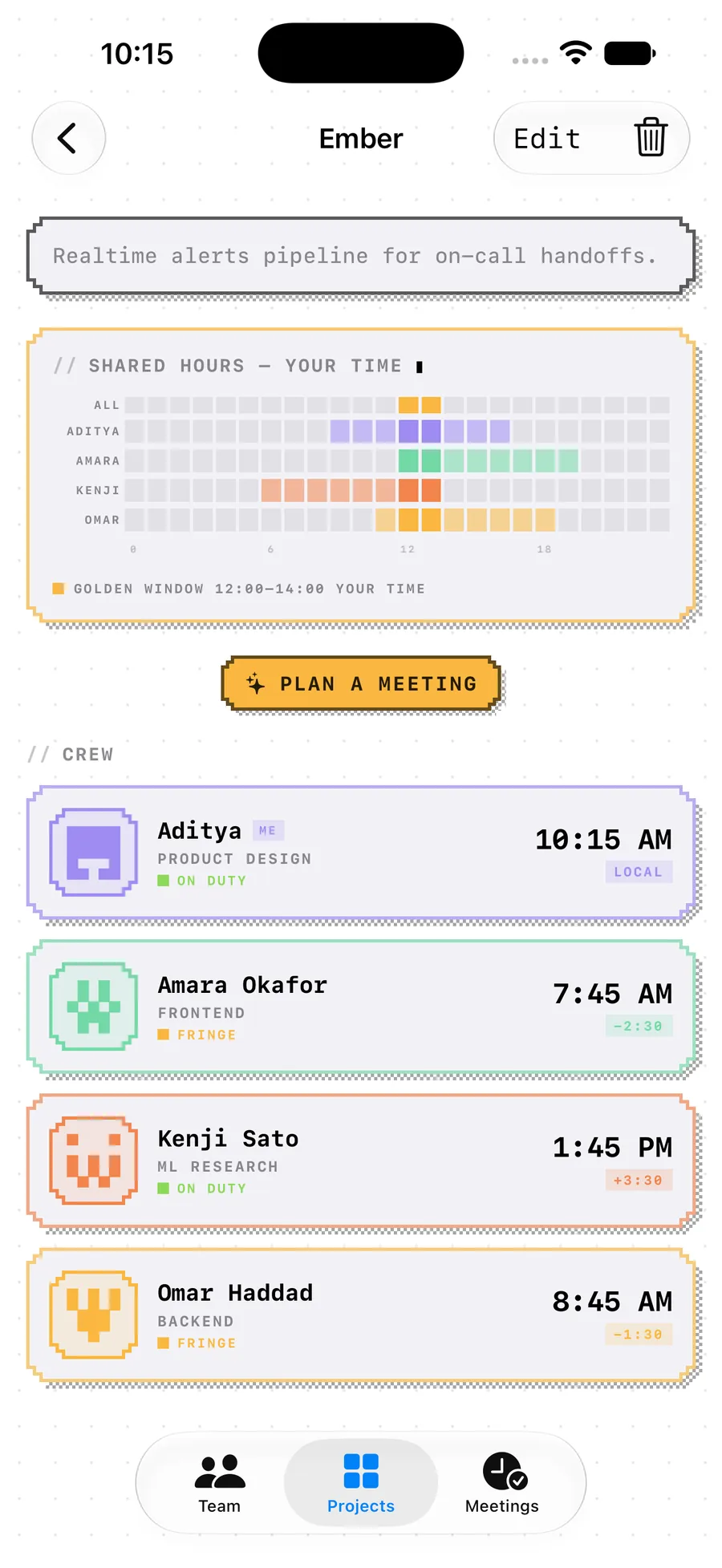
Shared hours — iPhone
// The planner
A meeting time nobody dreads
Pick a topic, a project, who’s coming, a length (25, 30, 45 or 60 minutes) and a window — the next 3, 5, 7 or 14 days, or one exact date. Dayshift walks that window in 30-minute steps and scores every single step.
Each candidate is measured against every attendee’s own clock, at both the start and the end of the meeting, on a comfort curve: full credit inside 09:00–16:00, less at the edges of the morning and evening, and a hard penalty for anything that lands while someone should be asleep. Anyone on vacation costs the slot too. The score you see is that curve averaged across the whole crew.
Slots that collide with your own calendar are dropped. Weekends are skipped unless you asked for a specific date. Nothing weak enough to be uncomfortable survives the cut, and no single afternoon is allowed more than two entries — so the ten candidates you get back are ten genuinely different options, each one honest about who it’s rough for.
// Try the curve
Below is Dayshift’s comfort curve, run in your browser against the crew you picked above, across one 24-hour day. Toggle a teammate and the ranking moves.
Fairness 100% FAIR
Fairness 100% FAIR
Fairness 91% FAIR
The app scans the days you choose rather than a single day, discards slots that clash with your calendar, and keeps at most two candidates per day. This page runs the same scoring curve over one day so you can feel how it behaves.
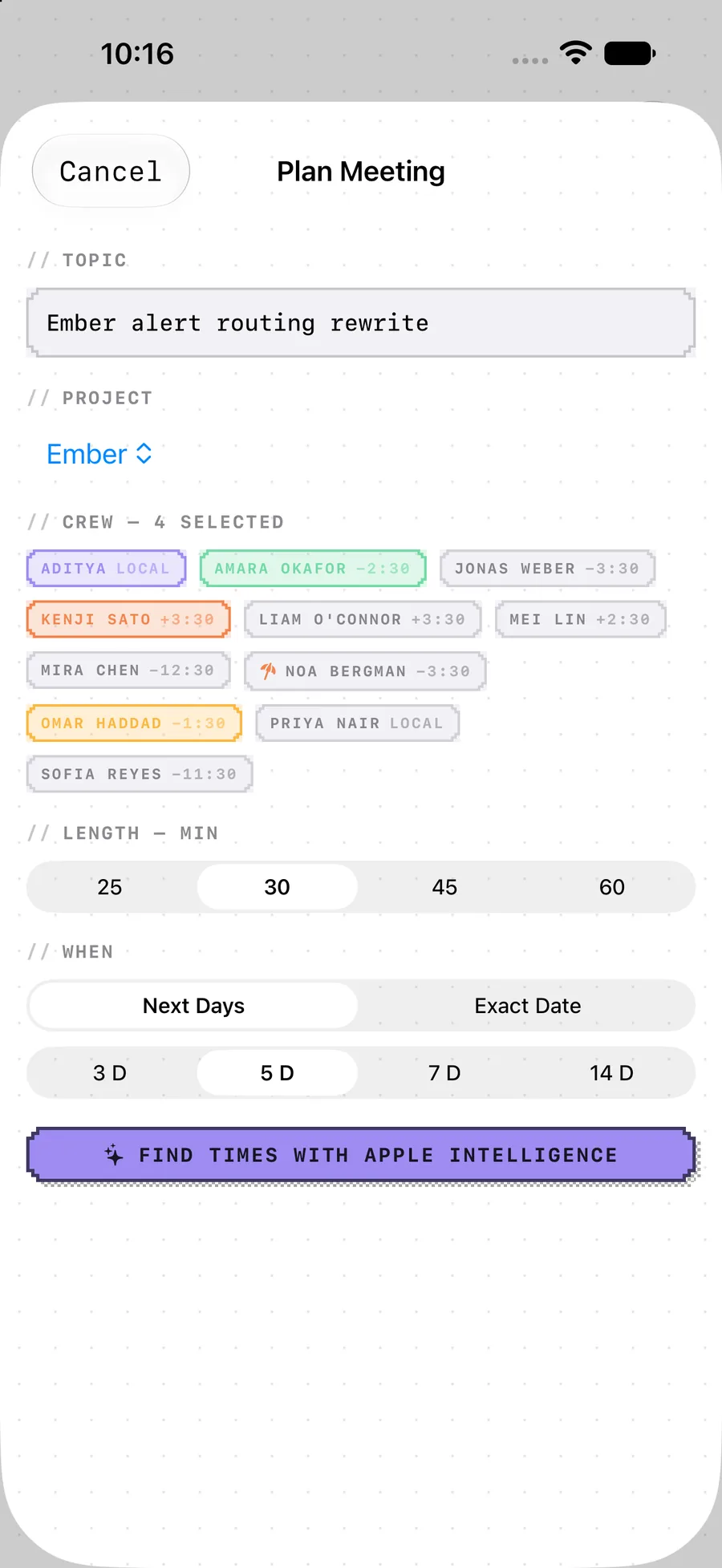
Plan a meeting — iPhone
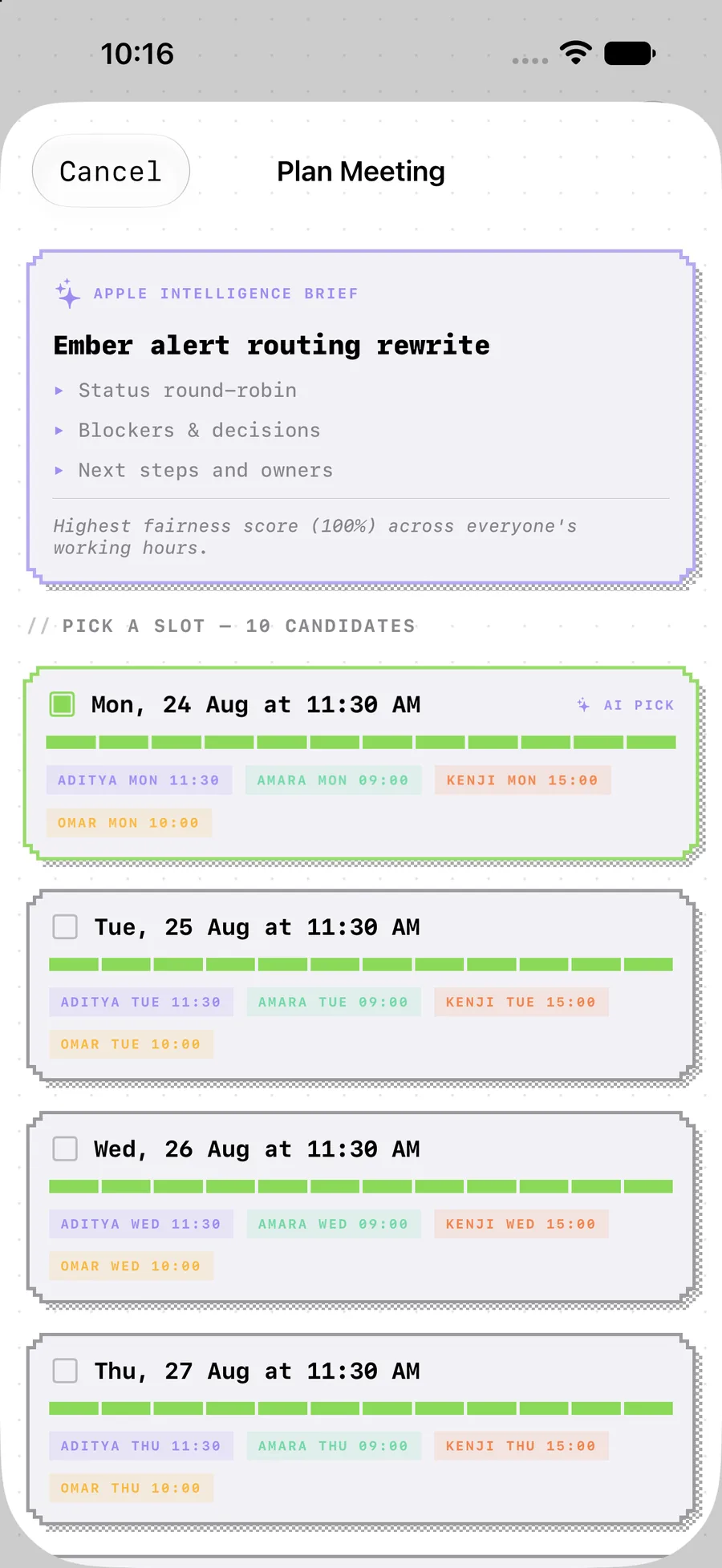
Ranked candidates — iPhone
// Apple Intelligence, on device
The brief writes itself — and never leaves your phone
Dayshift hands the ranked slot list to Apple Intelligence through Apple’s Foundation Models framework and asks it for three things: a short meeting title, exactly three agenda bullets, and one sentence explaining why that time is fair on everyone. It picks a slot from the list you can already see, and it runs on the device in your hand. There is no server in this loop and nothing to sign in to.
If Apple Intelligence isn’t available — unsupported hardware, switched off, or simply not ready — Dayshift writes the brief itself from the same numbers and puts the top-scoring slot first. Every other part of the planner is identical. The scoring, the candidates, the fairness meters and the calendar hand-off do not depend on AI at all.
Written on device
Title, agenda and rationale come from the system language model running locally.
Graceful without it
A deterministic fallback brief covers every device that can’t run the model.
Maths, not magic
The fairness scores are arithmetic on time zones. The AI only writes them up.
// Meetings & calendar
Confirm a slot, and it’s in your calendar
Pick the slot you want and Dayshift writes it to your default calendar through EventKit, with a ten-minute alert and the attendee list in the notes. Upcoming meetings and the log of past ones both show every attendee’s local start time, so you can see at a glance who took the early one.
Before it suggests anything, the planner reads the busy intervals on your own calendars and skips slots that clash. Events are only ever written when you confirm one.
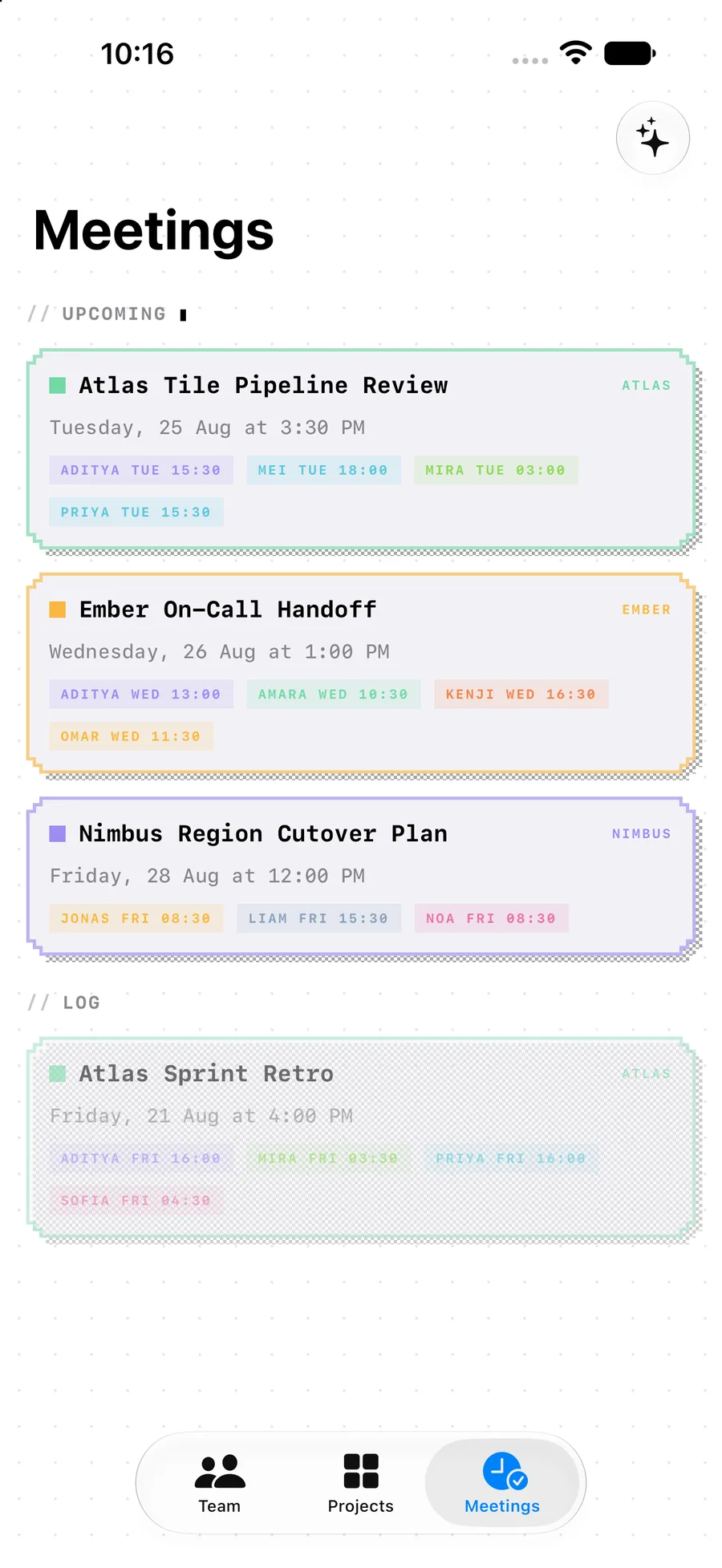
Meetings — iPhone
// On the Mac
The roster lives in your menu bar
On macOS, Dayshift is a full three-pane app and a menu bar extra. Click the icon and the crew drops down as a compact clock list — sprite, name, a duty LED and their current time, ticking. Click a name and the main window opens on that teammate.
Same data, same design language, same window: the app follows your system appearance, so a dark Mac gets the CRT-on-black treatment and a light one gets paper.
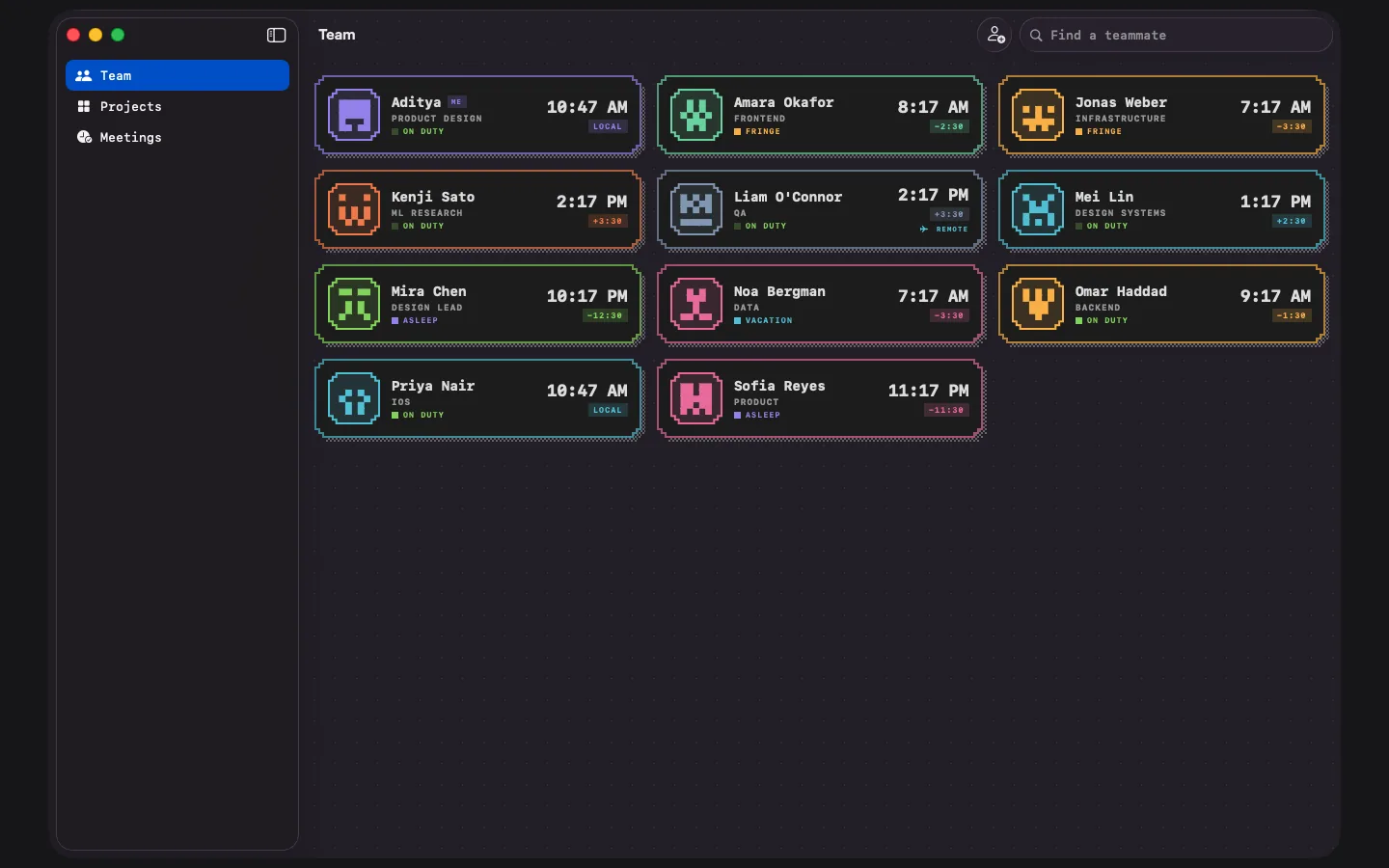
Team — Mac
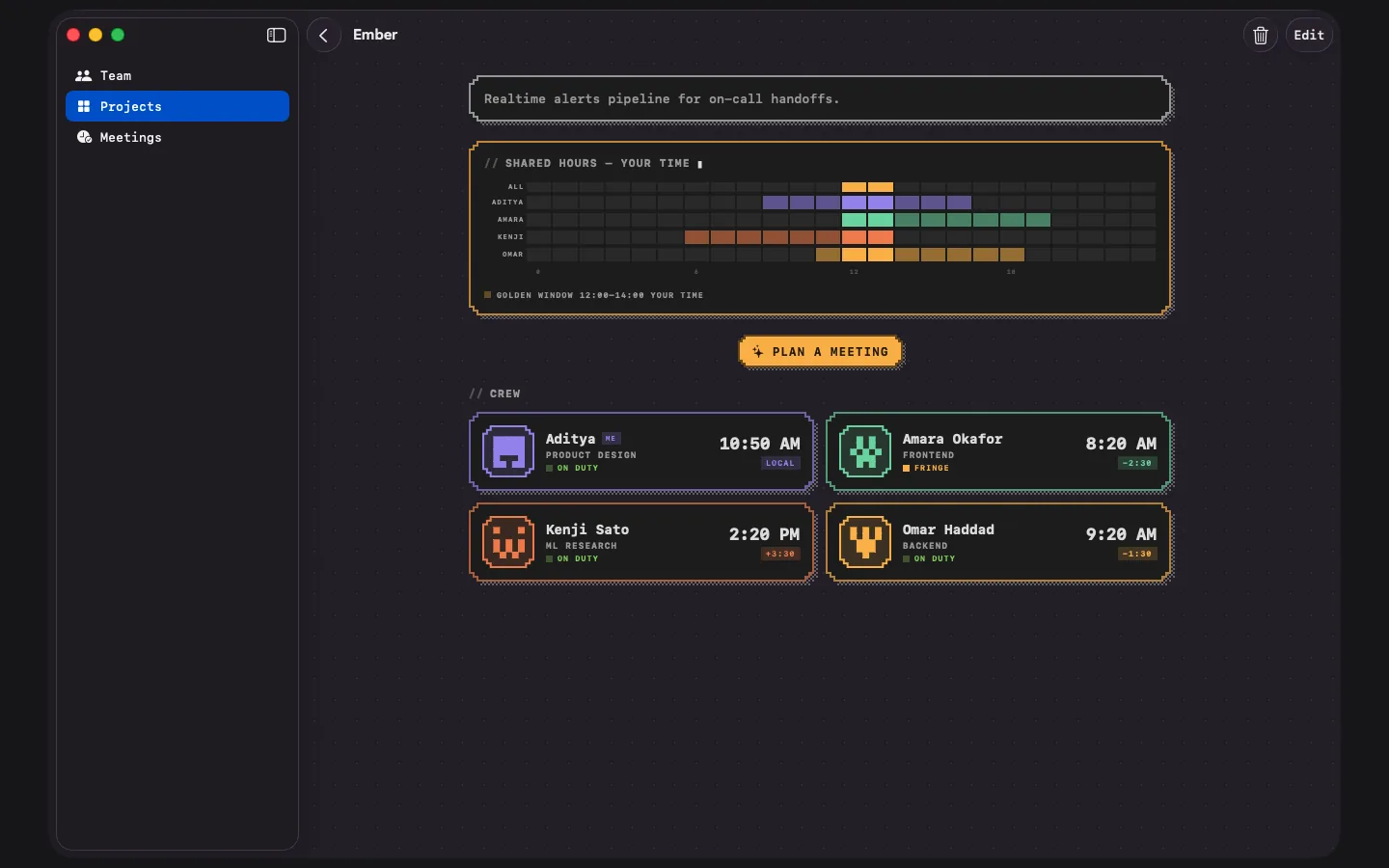
Shared hours — Mac
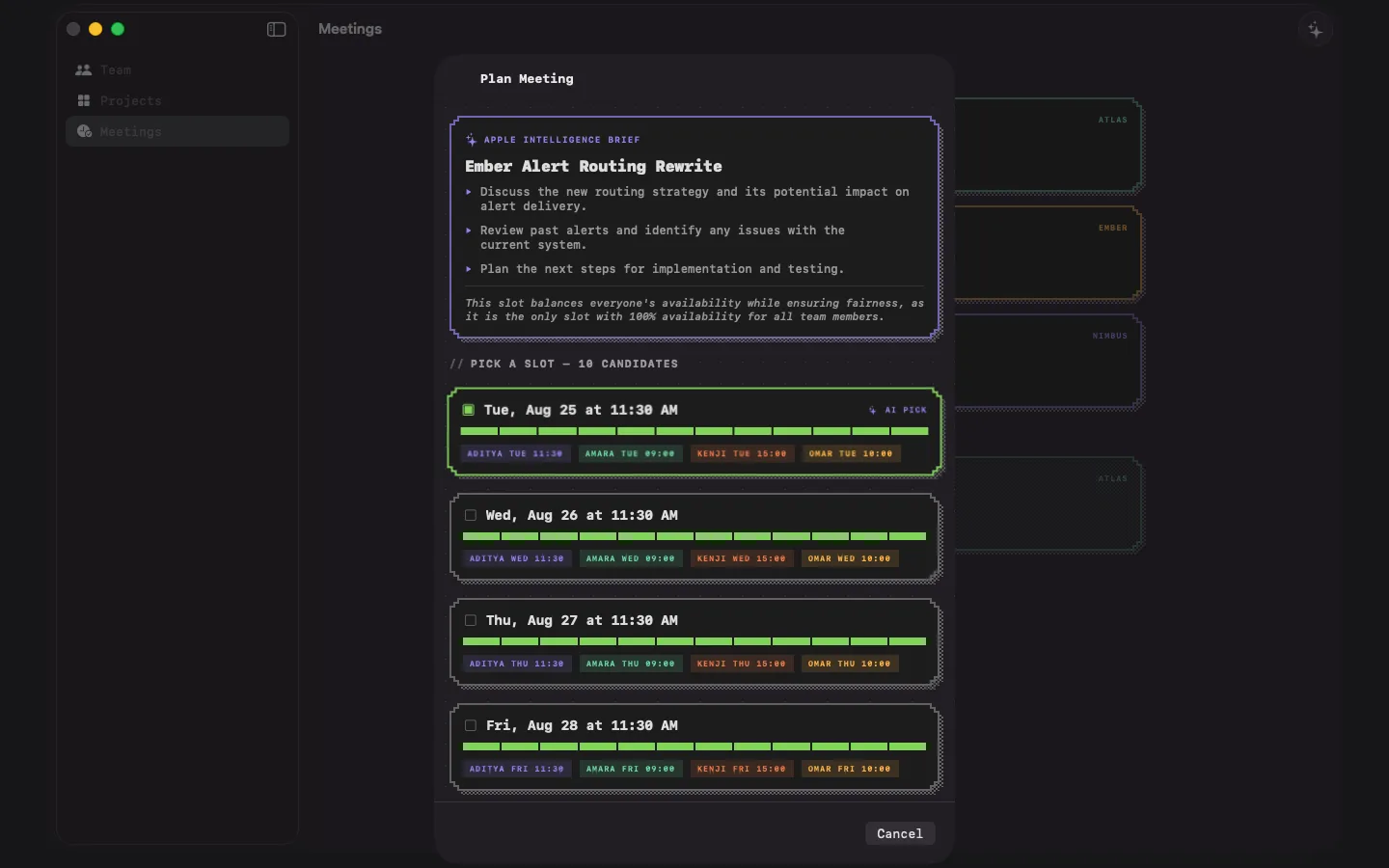
Planner — Mac
// On iPad
More room for more zones
The same app, laid out for a bigger canvas: sidebar navigation, the shared-hours map stretched wide enough to read every hour, and crew cards two across. Dayshift is one universal app — iPhone, iPad, Mac and Apple Vision Pro.
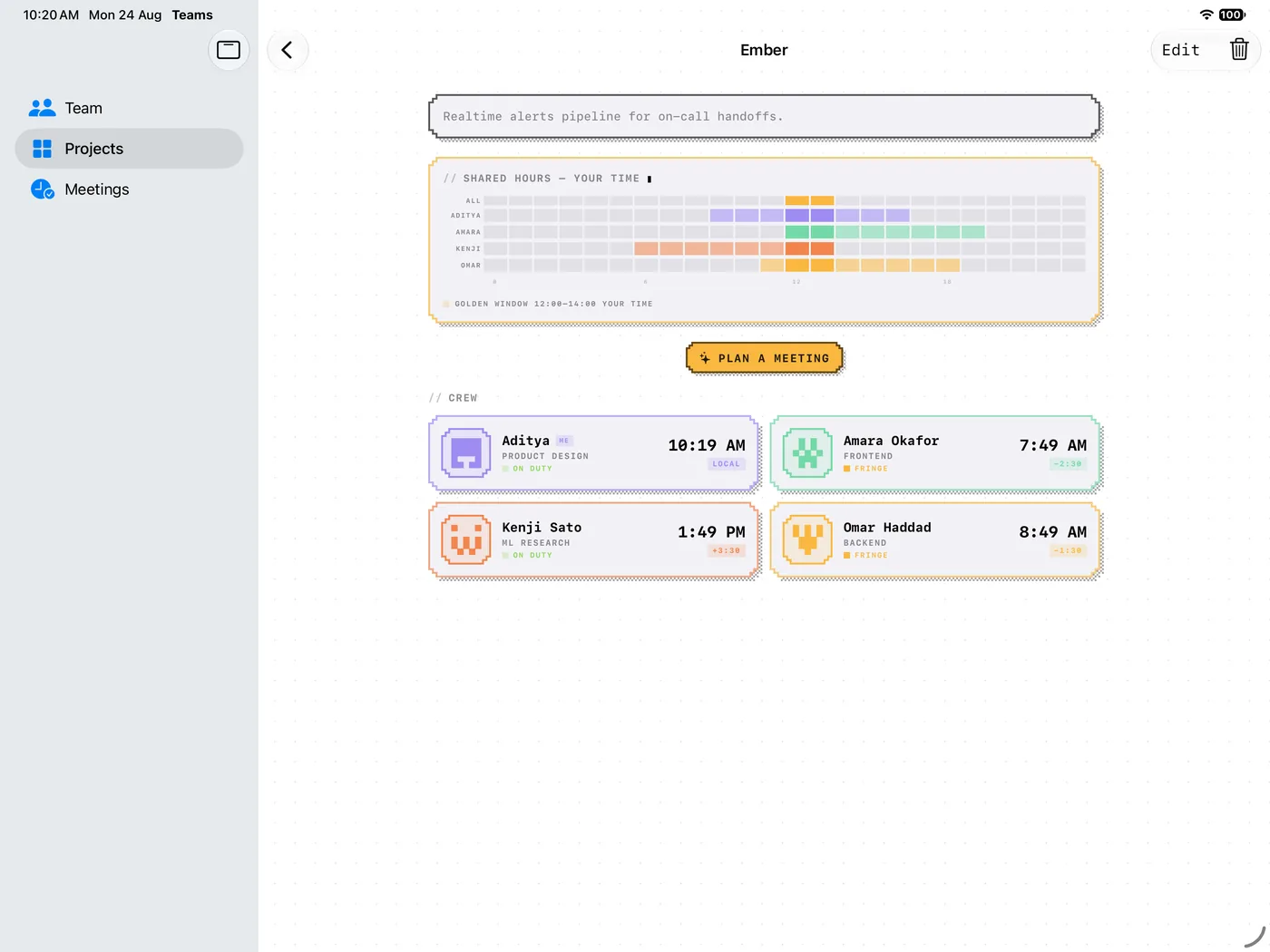
Shared hours — iPad
// Widgets, Siri & Spotlight
The crew clock, everywhere you already look
Team Clock widget
Small, medium and large. Point it at everyone or at one project’s crew, optionally sorted by offset, and it keeps the clocks honest minute by minute. Tap it to land on that project.
Siri & Shortcuts
Five App Intents — Get Local Time, Open Team Member, Open Project, Plan a Meeting and Add Team Member — so “what time is it for…” is answered out loud and every one of them drops into a shortcut.
Spotlight
Teammates are indexed as entities, so a name typed into Spotlight finds the person — and their local time comes with it.
Menu bar
On the Mac the roster is one click from the menu bar, ticking, without bringing the whole window forward.
// Your data
No account. No ARRcade server.
Your roster lives on your device and syncs through your own private iCloud database — the same account that already holds your photos and notes. ARRcade never sees it, because there is nowhere for it to go: no sign-up, no login, no backend. If iCloud isn’t available, Dayshift keeps everything in a local store instead and carries on.
Calendar access is read-then-write, and only on your terms: the planner reads your busy hours so suggestions dodge your existing commitments, and an event is created only when you confirm a slot. Apple Intelligence runs on the device. Nothing about your team is sent anywhere for a meeting to be planned.
Your iCloud
SwiftData mirrored to your private CloudKit database, with a local-only fallback.
Your calendar
Busy hours read via EventKit. Events written only when you confirm one.
No accounts
Nothing to register, nothing to log in to, no ARRcade service in the loop.
// Spec sheet
What it is, precisely
| Devices | iPhone, iPad, Mac and Apple Vision Pro — one universal app |
|---|---|
| Minimum OS | iOS 18 · iPadOS 18 · macOS 15 · visionOS 2 |
| Roster | Live local time, offset, duty state, role, photo or pixel sprite, per-person accent colour |
| Away | Remote stints with a temporary time zone, and vacation intervals — both dated, both day-granular |
| Projects | Crew grouping, zone-spread count, 24-hour shared-hours map, golden-window detection |
| Planner | 30-minute scan, fairness curve per attendee, calendar-conflict filtering, up to ten ranked candidates |
| Meeting lengths | 25, 30, 45 or 60 minutes |
| Search window | Next 3, 5, 7 or 14 days, or one exact date |
| Apple Intelligence | On-device meeting brief via the Foundation Models framework, with a non-AI fallback |
| Calendar | EventKit — reads busy intervals, writes the confirmed slot with a ten-minute alert |
| Widgets | Team Clock — small, medium and large, configurable per project |
| Mac | Menu bar roster alongside the main window |
| Siri & Shortcuts | Get Local Time, Open Team Member, Open Project, Plan a Meeting, Add Team Member |
| Sync | SwiftData with CloudKit mirroring into your own private database; local store fallback |
| Accounts | None |
| Price | Free to download — Dayshift Pro is a one-time $2.99 in-app unlock. No subscription, no ads. |
| Category | Productivity · age rating 4+ · Family Sharing supported |
| Status | Version 1.0 — out now on the App Store |
// Get Dayshift
Dayshift 1.0 is out
One universal download covers iPhone, iPad, Mac and Apple Vision Pro. The app is free to download, and Dayshift Pro is a single $2.99 in-app unlock — one payment, no subscription, no ads, and no account to create either way.